When your iPhone is the only screen you have.
An iPhone won't replace the score on your stand. With the right settings, it handles a lead sheet, a hymn or tomorrow's score on the train.
Your iPhone is always with you, which makes it the device you’ll actually have when someone calls a tune you don’t know, when the choir director says “page 14” and you left the folder at home, or when you want to look over tomorrow’s score on the way there.
Is an iPhone big enough?
For some music, yes. For some, no. It depends on what you’re reading.
| Music | On iPhone |
|---|---|
| Lead sheets and chord charts | Good, especially in landscape |
| A single line of music: wind, brass, strings or voice | Workable with zoom or scrolling |
| Hymns and choir scores | Workable for a look; small for singing a whole service |
| Piano music and full scores | Hard. Use it to check something, not to perform |
| Studying a score away from the instrument | Good |
A printed score is about the size of a letter page; an iPhone screen is a fraction of that. Reading on a phone works by showing less of the page at once, larger.
Make the score readable
Turn it sideways
In landscape, the width of the page fills the screen and the notes get much bigger. You see fewer lines at a time, so you scroll more. For a single line of music, that trade is usually worth it.
Fit the width, then scroll
Most readers can fit the page’s width to the screen and let you scroll down through it. On a phone that beats seeing a whole page shrunk to a postage stamp.
Scroll instead of turning
A continuous view, where pages run one after another, suits a small screen better than page by page. You never land at the top of a page wondering where the last system went.
Zoom to a line
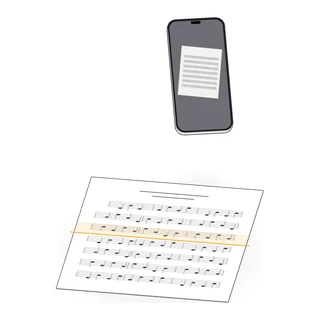
Double-tapping or pinching into one system makes it readable at arm’s length. Use it for the passage you’re checking, then zoom back out.
Use the whole screen
Hide the app’s toolbars while reading. Turn up the brightness, and turn off auto-lock for the length of the piece if your screen keeps going dark.
Turn the page
- Taps at the edges are the most reliable on a phone. A swipe can scroll by mistake.
- A pedal works with iPhone too. Bluetooth page-turn pedals pair with an iPhone the same way they do with an iPad; see Bluetooth Page Turner for iPad.
- A stand holder for a phone keeps it at eye level and stops it sliding off a slanted stand.
What an iPhone is best at
Even if you read from an iPad on stage, the phone earns its place:
- Scanning. The camera turns a paper score into a PDF in a minute. See How to Scan Sheet Music With iPhone.
- Looking things up. Check a key, a bar number or a repeat while someone else has the score.
- A backup on the stand. If the iPad’s battery or a cable fails, the setlist is still in your pocket.
- Practicing away from home. Read through the score on the bus, with a metronome and a tuner in the same app.
Keep the iPhone and iPad in step
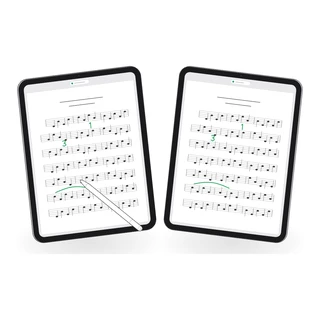
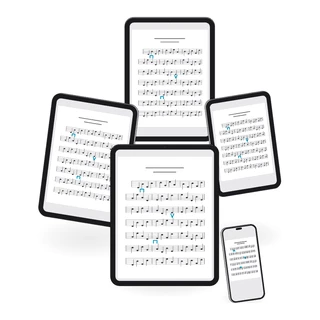
Reading on a phone only works if the phone has the same music as your iPad, with the same markings. Choose an app that keeps one library across both, so a score you added at home and the fingering you wrote at rehearsal are there when you open it on the phone.
How Marcato does it
Marcato is on iPhone with the same library as your iPad. Sign in on both and every score, folder and setlist is there, with your markings exactly where you wrote them, as sharp on the small screen as on the big one.
In Display Settings, Continuous runs the pages one after another, and Fill Width, when the phone is sideways, fills the width and scrolls down the page before it turns. Double-tap a system to zoom to it, and again to zoom out. Tap the middle of the page to hide everything but the music; tap the edges, swipe or use a pedal to turn.
On iPhone, Scan has its own tab, so paper becomes a score in your library in a minute, and it’s on your iPad when you get to the stand. Apple Pencil isn’t needed to mark: Draw brings out the same pen, layers and stamps, sized for a phone. The metronome and tuner are in the reader on iPhone too.
If the section leader starts a live session, join it from your iPhone with the code or the QR code. When they turn, your page turns with them.