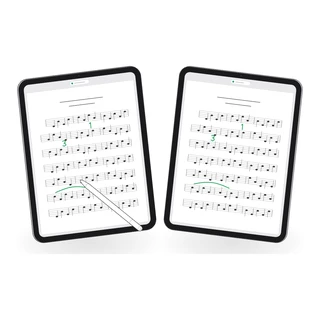
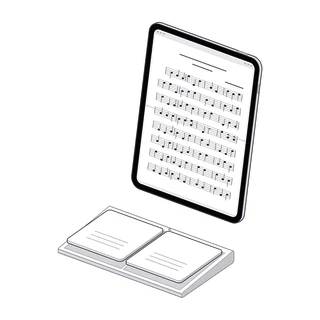
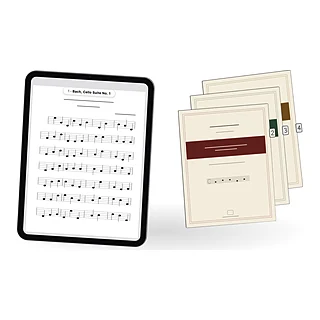
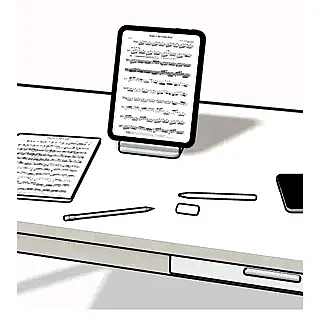
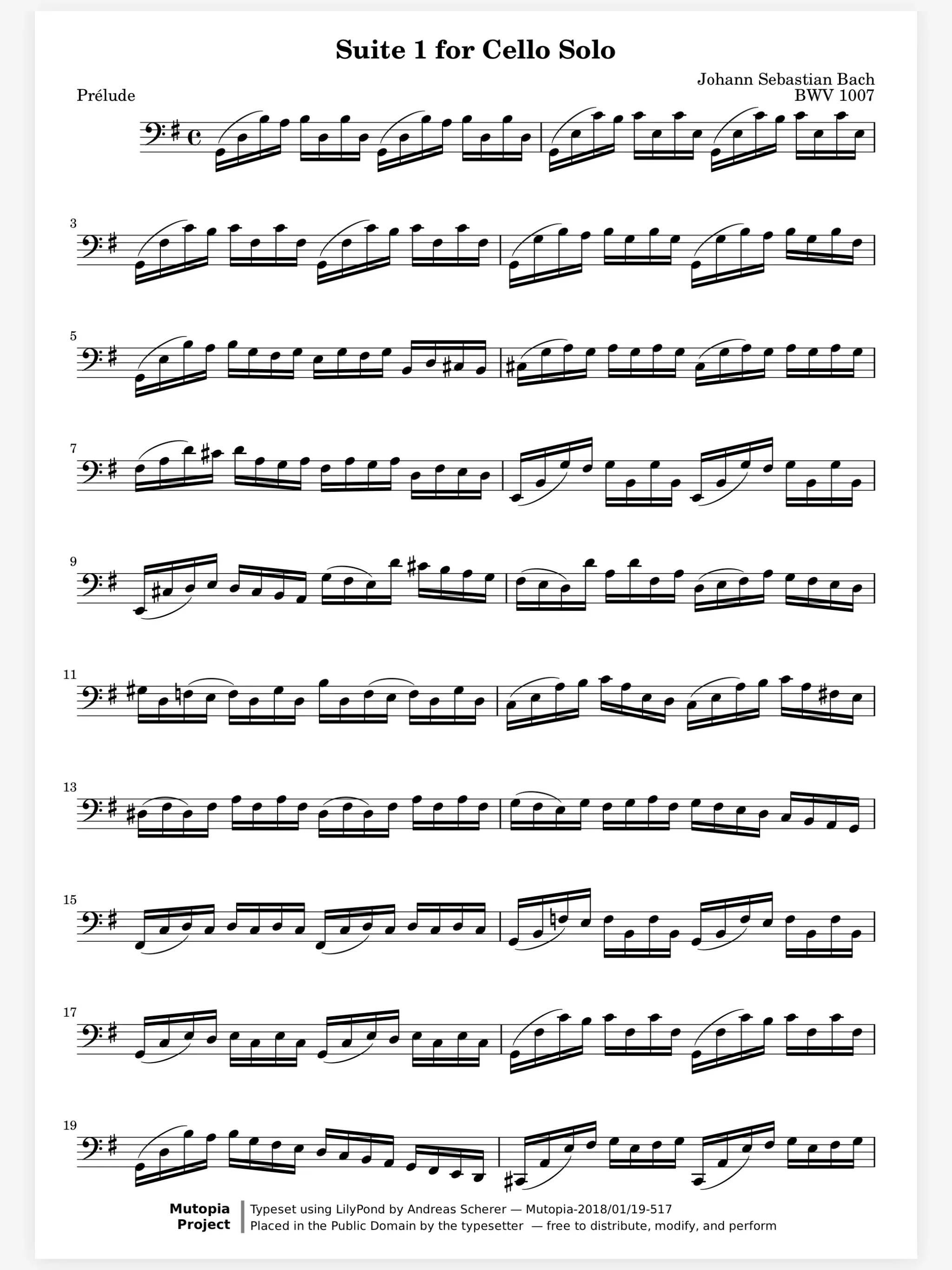
Two iPads sharing one score. Every stroke on the left iPad appears on the right one.
How it works.
Write Together, in real time.
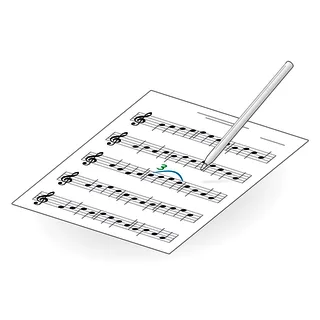
In a lesson over video you end up pointing at bars nobody can touch. Choose Write Together and every stroke shows on the others' screens as it is drawn, with the writer's name at its tip. Everyone writes in their own color and turns on their own.
Strokes appear as they are drawn
Who is here, and on which page
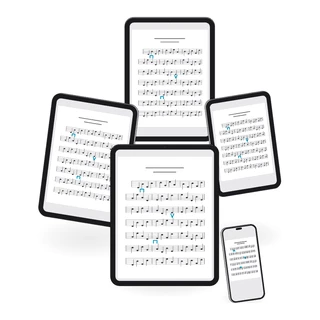
iPad and iPhone in one session
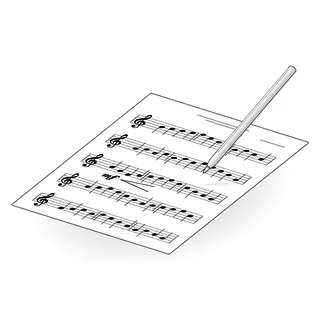
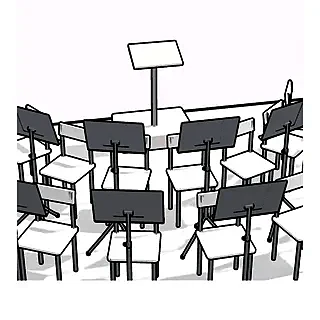
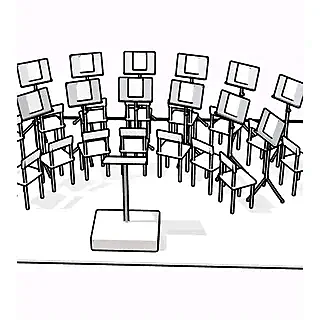
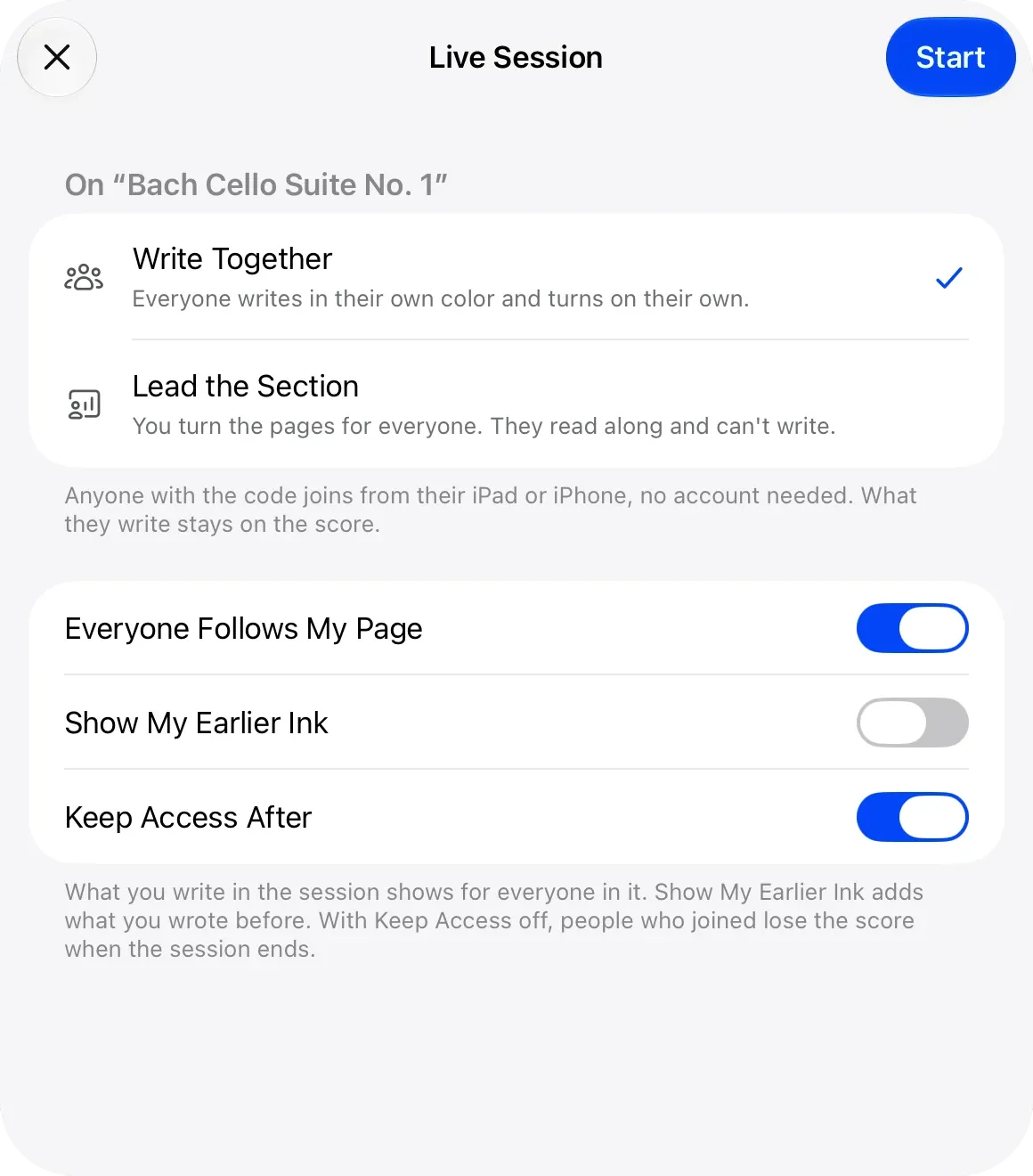
Lead the Section, and everyone turns with you.Rehearsal stops while the whole section hunts for the same bar. Choose Lead the Section and you turn the pages for everyone, while they read along without writing. They can glance back or ahead, and your next turn brings them back.
Everyone Follows My Page
Setlists carry everyone onward
The leader writes, the section reads
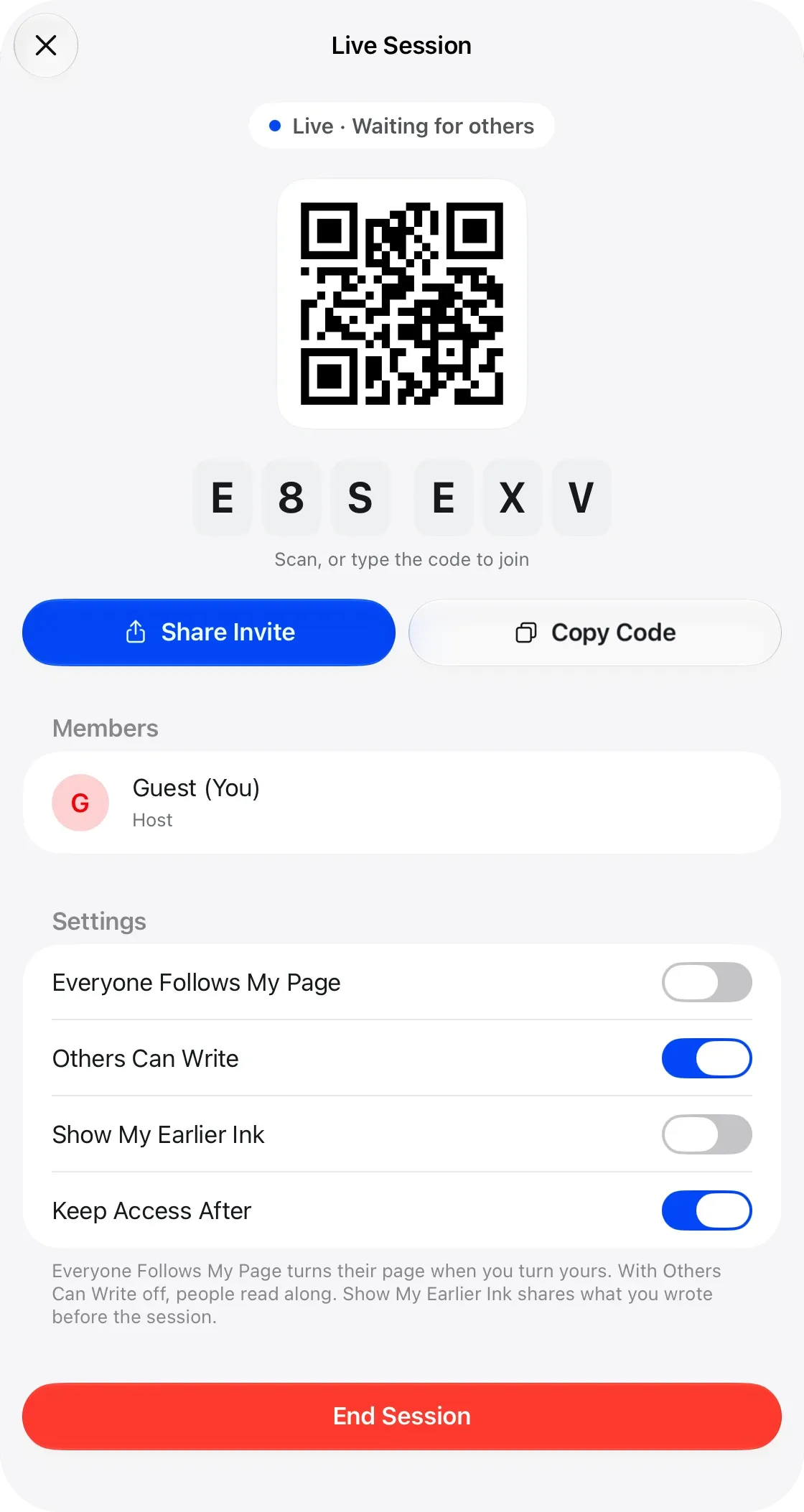
Join by code, link or QR code.Nobody wants to make an account five minutes before a lesson. Read out the six-character code, send the invite link or hold up the QR code. Joining needs no account, and the score arrives in their library by itself.
A code you can read across a room
Share Invite sends the link
Join from iPad, iPhone or a browser
Everyone writes on their own layer.
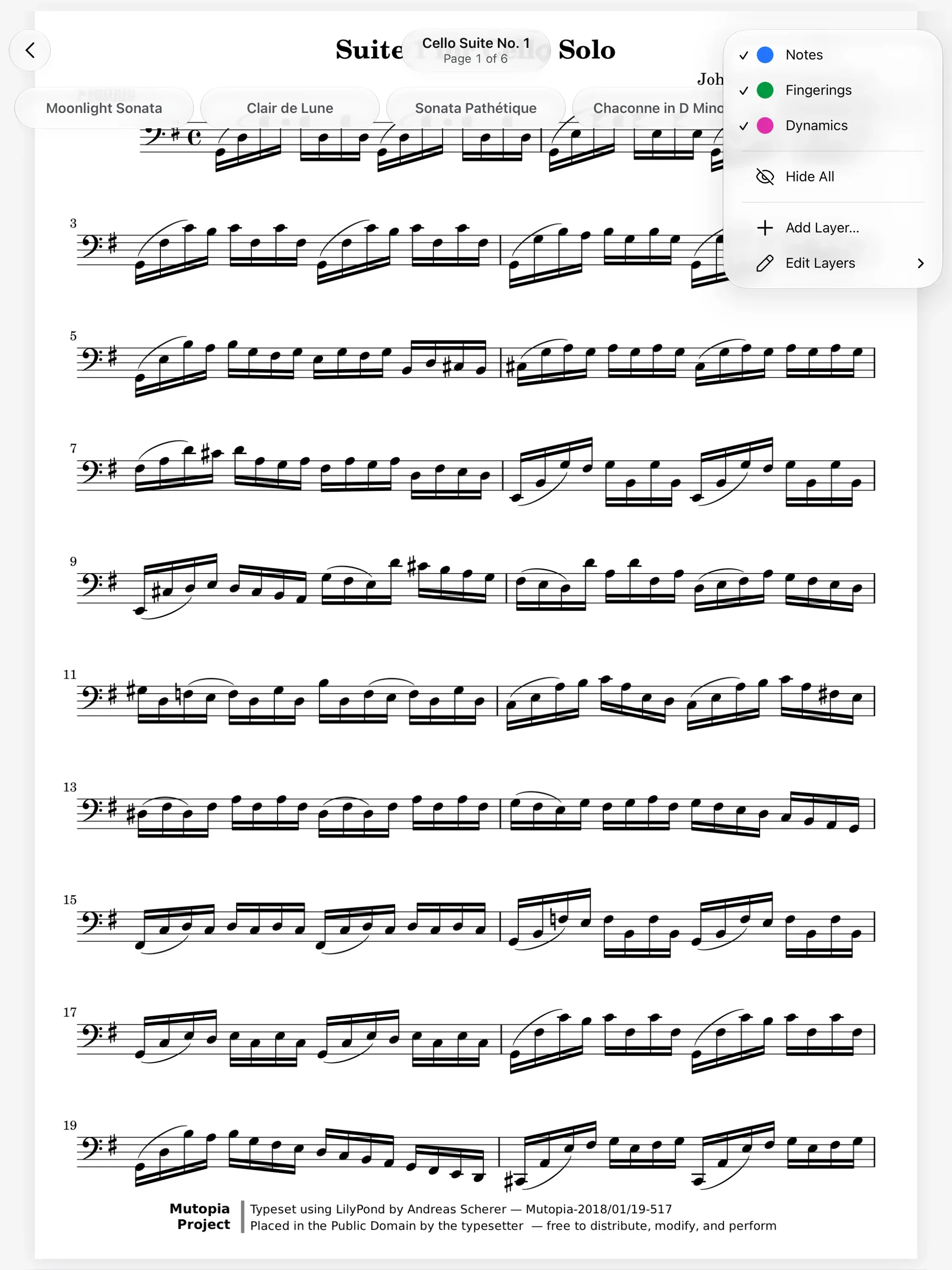
After the lesson you want to know whose marking is whose. Each person writes on their own layer, named for them, in a color of their own. Other people's ink sits under From Others in the Layers menu, where you hide it like any layer.
And all the little things.
Never lost
Every stroke is saved the way it is when you write alone, so a dropped connection loses nothing.
Your earlier ink
Ink from before the session stays private unless the host turns on Show My Earlier Ink.
Keep Access After
The host decides whether the people who joined keep the score once the session ends.
Session Recap
When it ends, the recap shows how long it ran, who came and how many strokes each wrote.
iPad, iPhone and the web
A teacher on iPad, a student on iPhone and a stand partner in a browser share one score.
Back where you were
Close the app mid-lesson, and opening the score takes you back into the session.
Live Sessions questions.
Do the people I invite need an account?
No. Anyone with the code joins from their iPad, iPhone or a browser without an account. Starting a session needs you to sign in.
What is the difference between Write Together and Lead the Section?
In Write Together everyone writes in their own color and turns on their own. In Lead the Section you turn the pages for everyone, and they read along without writing.
Will everyone see the markings I made before the session?
No. Only what is written during the session is shared. The host can turn on Show My Earlier Ink to show theirs.
What happens if my connection drops?
Nothing is lost. Your strokes are saved on your device first and reach everyone when you reconnect.
Does it work between an iPad and an iPhone?
Yes. A teacher on iPad and a student on iPhone write on the same score together.