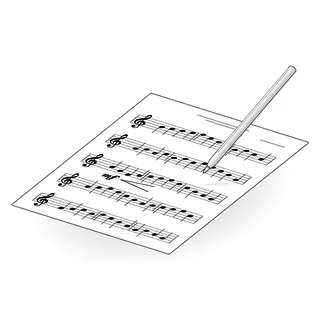


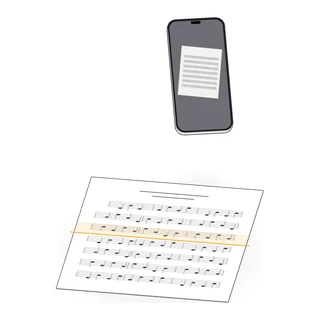
Turn the paper score on your stand into a PDF.
Your iPhone camera is a good sheet music scanner when the light and the angle are right. Here's how to get a score that reads like the printed page.
Most musicians have a binder of scores that exist only on paper: a photocopy from a workshop, an arrangement your director wrote out, a hymnal page, the étude your teacher handed you. Scanning them takes a few minutes and gives you a copy you can mark, carry and never lose in a rehearsal room.
What a good scan needs
A phone scan fails for four reasons: bad light, a tilted camera, a curled page and a busy background. Fix those and almost any iPhone makes a clean score.
- Even light. Daylight from a window or a ceiling light behind you. Avoid a lamp off to one side, which leaves one half of the page gray.
- No shadows. Your own head and phone are the usual culprits. Stand so the light comes from above or beside you, not behind the page.
- A flat page. Take the pages out of the binder or the folder. Hold a curled page down at the corners, outside the music.
- A plain, dark background. A dark table helps the camera find the edges of a white page.
- The whole page in view. Include a little of the table around it, so nothing at the margins is cut.
Scan with the apps already on your iPhone
Apple builds a document scanner into iPhone. It finds the page, straightens it and flattens the perspective, so a page photographed at a slight angle comes out square.
In Files:
- Open Files and go to the folder you want.
- Tap the More button (the three dots) and choose Scan Documents.
- Hold the iPhone over the page. It captures by itself when the page is steady, or tap the shutter.
- Adjust the corners if it missed an edge, then keep scanning the next page.
- Tap Save. The pages become one PDF in that folder.
In Notes: open a note, tap the attachment or camera button, choose Scan Documents, and save. You can share the PDF from the note afterward.
Step by step for a whole score
- Lay the pages out in order before you start, so you don’t lose your place.
- Hold the phone flat above the page, parallel to the table. Shooting from an angle works, but straight above gives the sharpest staves.
- Let it focus. Wait for the page to steady on screen before it captures. A blurry stem or a smudged accidental is worse than a slow scan.
- Scan every page of the score into one document. One score, one PDF.
- Check each page on the review screen. Retake anything blurry or crooked now, while the paper is in front of you.
- Name it the way you’ll search for it: title, composer and part, like “Finlandia, Sibelius, Viola”.
Color, grayscale or black and white
| Choice | Good for | Watch out for |
|---|---|---|
| Color | Scores with someone’s colored markings you want to keep | Bigger files |
| Grayscale | Most printed music | Faint pencil may fade |
| Black and white | Crisp, high-contrast engraving | Light marks and thin lines can drop out |
Start with grayscale for printed music. Switch if your score has faint markings you want to keep, or very gray paper.
Large and odd pages
- Tabloid or folded sheets: scan each half as its own page if the camera can’t fit the whole sheet sharply. Your reader puts them in order.
- Bound books: press the spine flat and scan one page at a time. The curve near the binding is the hardest part; a scan app straightens the page, not the bend.
- Pages with a sticky note: take it off, or it becomes part of the music.
Common problems and fixes
| Problem | Fix |
|---|---|
| A dark band down one side | Move the light, or turn the page so the light is even |
| Wavy staves | Flatten the page, hold the phone straight above it |
| Blurry notes | Wait for focus, steady your hands on the table edge |
| Page edges cut off | Step back a little and include some table |
| Pages in the wrong order | Scan in order; reorder in the review screen before saving |
A word on copies
Scanning a score you own, for your own use, is what most musicians do. Rented or borrowed scores often come with rules about copies; your ensemble’s librarian knows them.
How Marcato does it
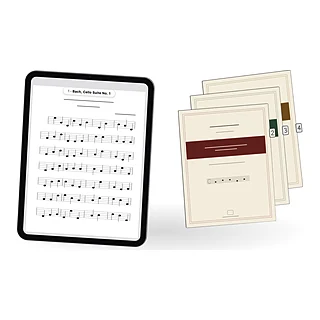
On iPhone, Scan has its own tab in Marcato. Tap it and Apple’s document camera opens: it finds the page, crops it and straightens it, and you scan every page of the score in one go. Tap Save and Marcato reads the title off the first page, files the score in your library with the first page as its cover, and opens it. On iPad, Scan Score is in the + menu.
Forgot a page? Open the score’s menu, choose Add Pages, then Scan Pages or From Photos. A photo you took on the bus works too: Scan from Photos turns several photos into one score, in the order you pick them.
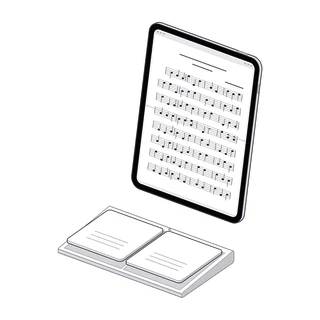
You can scan straight into a folder or a setlist from its own + menu. The scan is on your iPad when you get to the stand, ready for Apple Pencil.