Find any score in under a minute.
A library of sheet music only helps when you can find the score before the downbeat. Here's a system that holds up from 20 scores to 2,000.
The binder works until it doesn’t. Then you have three versions of the same score, a folder named “new music final 2”, and a page you know is somewhere. Going digital doesn’t fix that on its own. A few decisions up front do.
Pick one home
Sheet music ends up everywhere: email attachments, Files, a cloud drive, a reader app, the camera roll. Choose one app where every score you play lives, and bring everything into it. Two homes means you’ll always check the wrong one first.
Name scores the same way every time
Search only works when names are predictable. A pattern most musicians land on:
Title, composer, part. For example: “Symphony No. 5, Beethoven, Violin 2” or “Amazing Grace, arr. Wilberg, Choir”.
- Put the title first. It’s what you’ll type.
- Spell composers one way. “Tchaikovsky”, not sometimes “Tschaikowsky”.
- Use the part name your ensemble uses: “Horn 3”, “Alto”, “Violin 2”, “Lead Sheet”.
- Leave dates and “final” out of the title. If a score is replaced, replace the file.
If your app has fields for title, composer and part, fill those in instead of cramming everything into the file name.
Folders, tags and setlists: what each is for
The three are often confused. They answer different questions:
| Tool | Answers | Example | A score can be in |
|---|---|---|---|
| Folder | Where does this live? | “Youth Orchestra”, “Lessons”, “Church” | One folder |
| Tag | What kind of thing is it? | “Christmas”, “Audition”, “Jazz” | Many tags |
| Setlist | What am I playing, in what order? | “Spring Concert”, “Smith Wedding” | Many setlists |
Use folders for the big groups you’d keep separate on a shelf. Use tags for anything that cuts across them. Use setlists for a performance. Don’t build a folder for each concert: the music outlives the concert, and you’d end up copying scores.
Starter structures
Not sure where to start? Pick the one closest to you and adjust.
Student
- Folders: Lessons, School Orchestra (or Band, or Choir), Auditions
- Tags: the semester (“Fall 2026”), “Scales”, “Études”
- Setlists: each concert and each audition
Gigging musician
- Folders: one per band or act, plus “Standards”
- Tags: key (“in F”), feel (“Ballad”, “Latin”), “Singer’s Key”
- Setlists: one per gig, duplicated from the last similar one
Church musician
- Folders: Hymns, Choir Anthems, Preludes and Postludes
- Tags: the season (“Advent”, “Lent”, “Easter”), the occasion (“Communion”, “Wedding”)
- Setlists: each service
Orchestral player
- Folders: one per ensemble, then the excerpt list
- Tags: the season or program, “Excerpt”
- Setlists: each program, in concert order
Clean up an existing pile
- Bring everything in at once. Gather the PDFs from mail, cloud drives and Files into your music app.
- Delete duplicates. Keep the cleanest copy with the most useful markings.
- Rename as you go, using the title, composer, part pattern.
- Create your folders and move scores into them.
- Tag what matters now, not everything. Tags you never use are clutter.
- Scan what’s left on paper (see How to Scan Sheet Music With iPhone).
Do it in one sitting for a small library, or one folder an evening for a big one.
Keep it organized
- Add new music properly the day you get it. Name it and file it before the rehearsal, not after.
- Clear out after a season. Untag the concert, keep the music.
- Let search do the work. With good names, typing three letters beats scrolling.
How Marcato does it
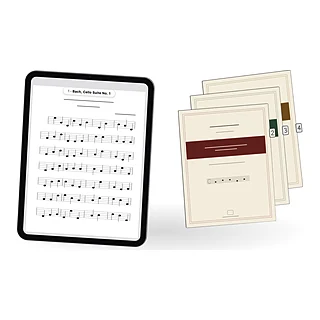
Marcato’s Library is a shelf of covers. New Folder is in the + menu under Organize; drag scores onto a folder, or choose Move from a score’s menu. Each score’s Details hold its title, composer, arranger and part, and its tags. Sort the shelf by your own order, title, composer or most recent.
The Library’s More menu browses by composer, tag and part across every folder, so “everything by Bach” or “all my Viola parts” is two taps. Search finds any piece by title, composer or part, offline too. A score you delete waits in Recently Deleted until you’re sure.
Setlists have their own tab. A score can be in as many setlists as you like without being copied.
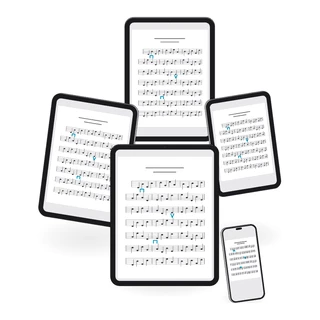
A quartet, a band or a section can share one folder as a group: everyone in it sees the same folder, and a score dropped in is in everyone’s library. Scores other people share with you sit on your shelf beside your own.
Bringing a library in? Settings, then Move Your Library, takes a forScore library (setlists and markings included) or a folder of PDFs, where every folder inside becomes a folder in your library. Everything you organize on iPad is on your iPhone too, once you sign in on both.