Take your whole forScore library with you.
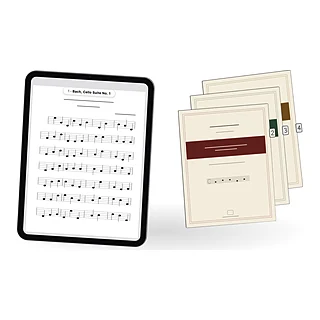
forScore can pack every score, setlist and marking into one file. Here's how to make the right one, what's inside it, and how to move it into Marcato.
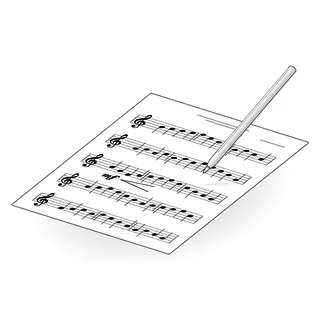
Years of forScore means years of work: the PDFs, their titles and composers, your setlists, your bookmarks, and every marking you made with Apple Pencil. All of it leaves forScore in one file, as long as it’s the right one.
Archive or backup: which one you need
forScore’s Backup panel makes two kinds of file. Both end in .4sb, and both look alike in Files, but they hold different things.
| Backup | Archive | |
|---|---|---|
| Titles, composers, tags and notes | Yes | Yes |
| Setlists, bookmarks and flags | Yes | Yes |
| Your markings | Yes | Yes |
| The PDFs themselves | No | Yes |
| Restores on its own | Only on a device that still has the PDFs | Anywhere |
A backup expects the PDFs to be on the device already. That’s fine for restoring forScore on the same iPad, and no use for moving somewhere new. To move your library, make an archive.
forScore also makes automatic backups each time it opens. Those are backups, not archives, and they can be days old.
How to make a forScore archive
- Open forScore.
- Tap the toolbox at the top right. A sidebar slides in.
- Scroll down the sidebar to More, near the bottom, and tap Backup.
- Tap + at the bottom of the Backup panel.
- Choose Create Archive, not Create Backup.
- Wait for the archive to appear in the list. A large library can take a few minutes.
Keep forScore open until it’s finished. The archive is named after the date it was made.
Make room first
An archive contains a copy of every PDF, so it’s about as big as your library. Check Settings, then General, then iPad Storage. If space is tight, remove videos or apps you don’t need before you start, not halfway through.
Where the archive is
forScore keeps archives in its own folder, which you can see in the Files app: Browse, then On My iPad, then forScore. The folder also holds your bare PDFs, but not the markings, setlists or details; those only leave forScore inside an archive.
From there you can copy the archive to iCloud Drive, a computer or a USB drive as a safe copy. Do it before you change anything else.
Moving it into Marcato
- Install Marcato on the same iPad as forScore.
- In Marcato, open Settings and tap Move Your Library, then forScore. (While forScore is installed, Move from forScore is also at the top of the + menu.)
- Marcato walks you through making the archive with pictures of forScore’s own screens. If you’ve already made one, tap through to the last step.
- Tap Choose forScore Folder. Files opens: tap Browse, then On My iPad, select the forScore folder and tap Open. Marcato remembers it for next time.
- Marcato takes the newest archive in that folder and moves your library. A summary shows what came over and what didn’t.
If the archive is somewhere else, Marcato offers Choose Archive File so you can pick it in Files. You can also open the archive in Files and share it to Marcato.
Nothing in forScore changes. Your library stays there until you decide otherwise.
What comes over
| Comes over | Every PDF and its pages; title, composer, genre, tags and labels (all become tags); notes; setlists in their order; bookmarks; flags; the look of every marking; your layer names, and which ones were hidden |
| Partly | Rating, difficulty, tempo and duration become a line in the score’s notes; a bookmark that spans pages marks its first page; setlist folders are flattened into setlists; typed text keeps its words and size |
| Doesn’t come over | Audio tracks and links, page-turn links, crops and zoom, MIDI, your custom stamps as reusable stamps, and forScore’s settings |
About your markings
forScore stores markings as a picture of each layer, not as separate pen strokes. Marcato brings those pictures over exactly as they looked, on two layers of their own: From forScore, with everything that was showing, and Hidden in forScore, with the layers you’d hidden, which arrive hidden.
You can hide either one with the rest of your ink. What you can’t do is pick up a single old stroke and move it, because forScore never kept it as a stroke. Anything new you write in Marcato is a real stroke you can move, recolor and erase, and it stays sharp at any zoom, where a picture goes soft.
After the move
- Open a few scores you know well. Check the markings and the page order.
- Play through a setlist to see that every piece is there.
- Keep the archive for a while as a safety copy.
- Sign in on your iPhone, and the library is there too.
Coming from somewhere other than forScore?
Move Your Library also takes a folder of PDFs from anywhere the Files app can open, like iCloud Drive or a USB drive. Every PDF in it comes over, and each folder inside becomes a folder in your library. Moves from MobileSheets, Newzik and Piascore are coming soon.
How Marcato does it
Move Your Library is in Settings, and at the top of the + menu while forScore is installed. Marcato shows you forScore’s Tools, Backup and Files screens as it guides you, then reads the archive itself: PDFs, details, setlists, bookmarks, flags and markings, on their own layers. A whole library moves in minutes. When it’s done, the summary lists what came over and what to know, and Open My Library takes you to your shelf.