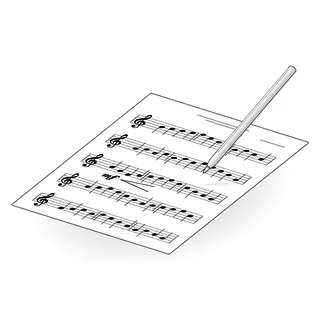
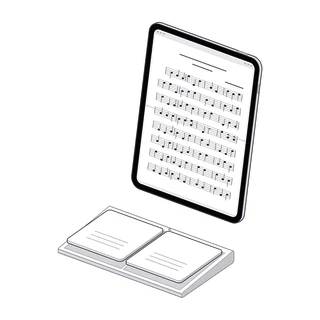
Mark up your score on iPad the way you would in pencil.
With the right tools and habits, Apple Pencil on a PDF works like pencil on paper. Here's how to mark a score that helps in rehearsal and stays clean on stage.
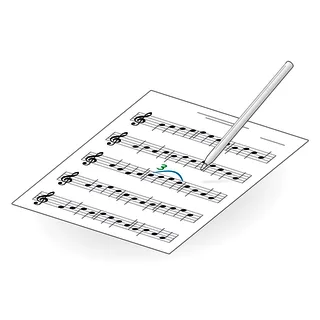
Marking a score is how a musician remembers. The fingering that finally worked, the breath that saves the phrase, the bowing your section leader asked for on Tuesday. On paper you write it in pencil. On iPad you write it with Apple Pencil, and you can do what paper never let you: undo, move a marking, and hide all of it for the concert.
What you need
- An iPad and an Apple Pencil that work together. Any Apple Pencil your iPad supports is enough for writing on music. Newer models add useful extras: double-tap (Apple Pencil 2nd generation and Pro) to switch to the eraser, squeeze (Pro) to bring up your tools, and hover (M2 iPads and later) to see where the tip will land.
- The score as a PDF. A file from your teacher or librarian, a download, or a paper score you scanned. If it only exists on paper, see How to Scan Sheet Music With iPhone.
- An app that keeps ink apart from the music. Writing straight into the PDF works, but you can’t hide or sort what you wrote. A music reader keeps your markings on top of the page, where you can show, hide and change them.
Decide what you’re going to mark
Before the first stroke, think about which kinds of marking you use. Most players come back to the same few:
| Marking | What it looks like | Tip |
|---|---|---|
| Fingerings | Small numbers above or below the note | Write them close to the note, not between staves |
| Bowings | ⊓ for down-bow, V for up-bow | Only mark where the bowing changes from what you’d play anyway |
| Breath marks | A comma or a check above the staff | Put it right where the sound stops, not over the next note |
| Dynamics | p, mf, f and hairpins | Circle a printed dynamic you keep missing instead of writing it again |
| Reminders | Glasses, “watch”, “count”, circled accidentals | Keep them few, or none of them stand out |
| Cuts and repeats | Brackets, arrows, “to coda” | Mark the jump and the landing, both |
Each of these kinds is a good candidate for its own layer, which comes up in the steps below.
Step by step
1. Get the score in and check it
Import the PDF and flip through it once. Check that every page is there, in order, and the right way up. Fixing a missing page now beats finding it at letter D.
2. Zoom in to write, zoom out to read
Writing at full-page size makes markings too big. Pinch into the bar you’re marking, write, then zoom back out. Your fingering stays the same size on the page, so it looks right when you read the whole system again. Some apps save markings as pictures, which go soft and jagged when you zoom in; if yours does, write at the zoom you read at.
3. Pick a tool and a color
A thin pen is the closest thing to a sharp pencil. A highlighter is good for a whole passage (a solo, a tricky run), less so for single notes. Use color with a purpose: many players keep fingerings in one color, dynamics in another and the conductor’s comments in a third, so a glance tells them what kind of note it is.
4. Write, then look at it from a distance
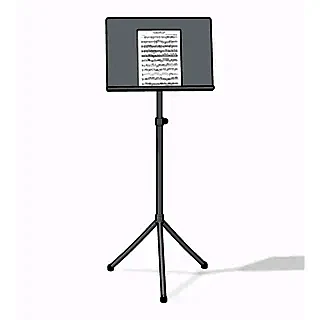
Make the marking, then hold the iPad where it sits on your stand. If you can’t read it at that distance, it’s too small. If it covers the notes, it’s too close.
5. Put each kind of marking on its own layer
Layers are sheets of ink stacked on the page. Fingerings on one, bowings on another, note names on a third. When the note names have done their job, you hide that layer and the rest stays.
6. Hide what you don’t need on stage
Before a concert or an audition, hide the practice markings and keep the ones that matter in performance. The page looks clean, and nothing is erased. After the concert, show them again.
Habits that keep a score readable
- Mark less than you think. If every bar has a marking, none of them catches your eye.
- Erase what you’ve learned. Old fingerings you no longer need are noise. Remove them, or move them to a layer you keep hidden.
- Use symbols, not words. A breath mark is faster to read than “breathe”. A pair of glasses says “look up” in one shape.
- Write it the same way every time. Your eye learns your own shorthand.
- Date or label a teacher’s markings. When three people have written on one score, it helps to know whose idea each one was.
Common mistakes
| Mistake | Fix |
|---|---|
| Writing at full-page zoom, so markings are huge | Zoom into the bar first |
| Every marking in black, all mixed together | Separate them by layer or by color |
| Resting your palm on the screen while you write | Apps with palm rejection ignore it; if yours doesn’t, use a writing glove |
| Writing over the printed notes | Use the space above or below the staff |
| Losing markings when the file is replaced | Keep the ink in your music app, not baked into a new PDF |
How Marcato does it
In Marcato, Apple Pencil writes the moment it touches the page, even from reading; a finger keeps turning pages. Tap Draw for the tools: pen, highlighter, eraser, lasso, stamps and text, with black, red, blue and green plus any color you pick.
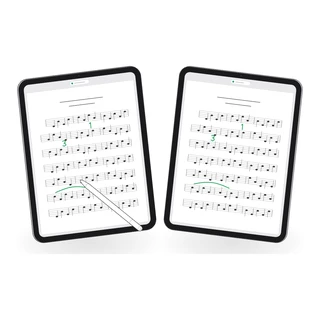
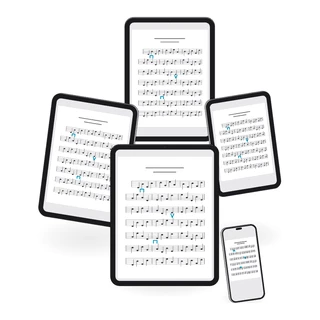
Marcato keeps every stroke as ink, not as a picture. Write a fingering at 8× zoom and it is still one clean line when you zoom back out, on your iPad and your iPhone.
Every score starts with three layers, Notes, Fingerings and Dynamics, and you can add your own, up to 12, with New Layer. The chip beside the colors (Draw On) chooses the layer you’re writing on. Open the Layers menu and choose Hide All to clear the page for the concert, or hide one layer at a time. ⇧⌘H does the same from a keyboard.
The stamp tool places engraved symbols, from dynamics and articulations to bowings, breath marks, fingerings and pedal marks. Or write them by hand: ink cleanup turns a scribbled dynamic, hairpin, slur, fingering or bowing into the engraved symbol, so your score reads like the print. Stamps and cleaned-up symbols are ink like anything else: move them with the lasso, size them, erase them.
In a lesson, start a live session from the score. Your teacher writes on your score from their own iPad or iPhone, in their own color and on their own layer, and what they mark is still there when you practice. They join with a code, a link or a QR code, and need no account.
Undo works per score and remembers past closing the app. And Replay Ink, in the reader’s More menu, writes a page’s ink again in the order you made it, which is a good way to show a student how a fingering came together.