Get ready for your section's move to iPads.
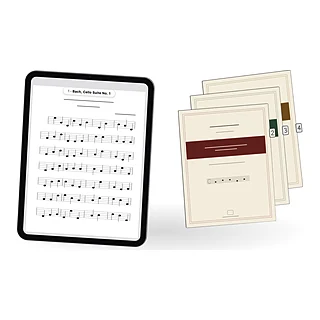
Reading orchestra music from an iPad changes the gear on your stand, how bowings reach you and how you turn. Here's what to sort out before the first rehearsal.
The email says it: next season, scores go out as PDFs and the section reads from iPads. For some players that’s welcome news. For others it’s one more thing to figure out before the first downbeat. Either way, an evening of setup the week before means you aren’t fumbling at letter C.
What changes for you
| On paper | On iPad |
|---|---|
| The librarian puts the folder on your stand | The score arrives as a PDF you import |
| The principal’s bowings are copied into every player’s copy | The principal shares a score with the bowings in it, or you copy them in yourself |
| The inside player turns | Each player turns, often with a pedal |
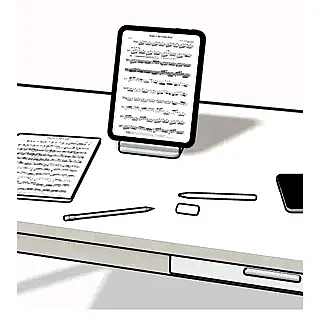
| Pencil and eraser on the stand | Apple Pencil, and markings you can hide |
| Light from the stand lamp | A lit screen, and a battery to watch |
The gear
The iPad
Orchestral music is printed larger than a letter page, and an iPad screen is smaller than one. The bigger the screen, the closer the score is to the size you’re used to.
- A 13-inch iPad shows a full page a little smaller than print. Most orchestral players who read every service from an iPad end up here.
- An 11-inch iPad works, especially in good light and for players with sharp eyes, but notes are noticeably smaller.
- Smaller iPads are fine for study and lookups, not for reading a full page at a distance.
Whatever you buy, check that it supports an Apple Pencil, and leave room in your budget for storage if your season is long.
The rest
| Item | Why |
|---|---|
| Apple Pencil | Marking bowings, fingerings and the conductor’s comments |
| Page-turn pedal | Turning without losing a bar; see Bluetooth Page Turner for iPad |
| A stand holder or a lip that grips | Orchestra stands are slanted and shelves are shallow |
| A case that folds flat | Something that doesn’t prop the iPad up at the wrong angle |
| A charger and cable in your case | For the double rehearsal day |
Before the first rehearsal
- Get the scores. Import each PDF the day it arrives.
- Check every page. Missing pages, upside-down scans and the wrong part (Violin 1 instead of 2) are much easier to fix before the rehearsal than during it.
- Name and file them. One folder per program or per season, each score named title, composer, part. See How to Organize Sheet Music on iPad.
- Set up your layers. Bowings, fingerings and the conductor’s notes are a good start. Keeping them apart lets you hide your own fingerings without losing the section’s bowings.
- Plan the turns. Look for the awkward ones, mid-run or after a page of rests that ends in an entrance, and decide whether to turn early, use a half-page turn, or rely on the pedal.
- Charge the iPad, the Pencil and the pedal.
Bowings and section markings
On paper, the principal marks bowings and the librarian copies them into every player’s copy. When the section goes digital, the principal or the librarian can send scores with the bowings already in them. Ask how changes will reach you: a PDF sent once is out of date the first time a bowing changes in rehearsal, while a score shared in a music app can update for everyone. If nothing arrives, copy the bowings from the principal’s score at the first rehearsal.
- Use one layer for the section’s bowings and another for your own.
- Mark only the changes. A down-bow at the start of a phrase and a retake are worth writing; every stroke isn’t.
- Use the symbols everyone reads: ⊓ for down-bow, V for up-bow. A clean stamp is easier to read at a distance than a hurried scribble.
In rehearsal
- Write first, tidy later. When the conductor gives a note, get it down fast. Clean it up at the break.
- Mark rehearsal letters and cuts clearly. When the conductor says “from 5 after F”, you want to find F in a second.
- Flag the spots to practice. A small mark on the bar you need to work on at home beats a mental note.
- If you share a stand, agree who turns and when, as you would with paper.
On concert day
- Charge fully, and know how long your iPad lasts at the brightness you read at.
- Turn on Do Not Disturb so nothing appears over the music.
- Set the brightness for the hall, not the green room. Stage lights change everything.
- Hide your practice markings and keep the bowings and cues showing.
- Bring a backup. A printed copy in your case, or the score on your phone, for the night a screen fails.
How Marcato does it
The principal marks the bowings once, on a Bowings layer, and shares the score. A shared score stays up to date: when the principal changes a bowing at the break, every player sees the change. A section can also be a group, a shared folder everyone in it sees; drop the program’s scores in and the whole section has them. A player without the app opens a shared score in the web viewer, in any browser.
For a sectional, start a live session with Lead the Section. When you turn, everyone turns with you, and their pages stay clean for reading along. In Write Together, everyone writes on the same page at once, each in their own color and on their own layer. Players join with a code, a link or a QR code, with no account.
Apple Pencil writes the moment it touches the page, and every marking is kept as ink, so it stays sharp when you zoom into a dense bar. Start with the Notes, Fingerings and Dynamics layers, add New Layer for “Bowings” or “Conductor”, and choose Hide All in the Layers menu before the concert, or hide only your own fingerings. Stamps place engraved bowings, articulations, dynamics and breath marks, and ink cleanup turns a hurried hand-drawn down-bow into the engraved one.
A setlist plays the program in concert order, turning from one piece into the next with a pedal, and tabs keep your part, the full score and an excerpt one tap apart. Touch and hold a page to drop a flag on the bar you need to practice.