Turn pages with your foot, not your hand.
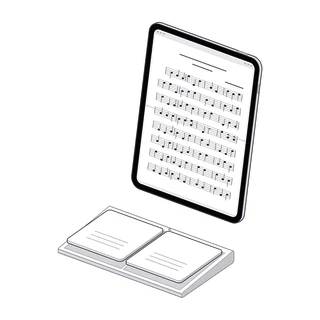
A page-turn pedal keeps both hands on your instrument. Here's how pedals work with iPad, what matters when you choose one, and how to get yours turning first try.
Turning a page mid-phrase is the one thing paper never solved. Pianists lose a hand, string players lose a bow stroke, guitarists lose a whole bar. A Bluetooth pedal fixes it: you tap your foot, the page turns, and your hands never leave the instrument.
How a page-turn pedal works
Almost every page-turn pedal is, as far as your iPad is concerned, a tiny keyboard. It pairs over Bluetooth and sends a key press when you step on it. Which key depends on the pedal and its mode:
| Mode | Keys it sends | Common use |
|---|---|---|
| Arrows | Left and Right, or Up and Down | Most sheet music apps |
| Page | Page Up and Page Down | Readers and PDF apps |
| Space and Enter | Space, sometimes Enter | Some readers, teleprompters |
| Media or volume | Play, volume up and down | Video and audio apps, rarely music readers |
The app on screen decides what each key does. That’s why a pedal can turn pages perfectly in one app and do nothing in another: the pedal is fine, the app is listening for a different key.
Most pedals switch modes with a button combination or a small switch. The manual lists them; it’s worth finding that page before the gig.
What to look for
There is no single best pedal. These are the things that make a difference on stage:
- Two pedals, not one. One for forward, one for back. You will need back the first time a repeat sends you to the previous page.
- Key modes. Check that it can send arrow keys or Page Up and Page Down. Those work in the most apps.
- Quiet switches. Some pedals click. In a quiet hall, or on a recording, you’ll hear it. Look for “silent” or “quiet” in the description, and test it in a quiet room.
- Power. Rechargeable pedals save you hunting for batteries; replaceable batteries can be swapped in a minute when one runs flat. Either way, find out how long it lasts on a charge and how it warns you.
- Grip and weight. A light pedal slides across a wooden floor. A rubber base, or a little weight, keeps it where your foot expects it.
- Size. Pedal boards for guitarists are big; a pianist with two other pedals nearby needs something small.
- Reconnecting. A pedal that goes to sleep should reconnect when you press it, without opening Settings.
Read recent reviews from musicians for reconnection and switch noise. Those are the two things a spec sheet won’t tell you.
How to pair it with your iPad
- Charge the pedal or put in fresh batteries.
- Put it in pairing mode. Usually you hold a button until a light blinks.
- On the iPad, open Settings, then Bluetooth, and make sure Bluetooth is on.
- Wait for the pedal under Other Devices and tap its name. It moves to My Devices when it’s connected.
- Open your music app, open a score, and press each pedal. Forward should go forward and back should go back.
- If nothing happens, switch the pedal to another mode and try again.
Pair it once and the iPad remembers it. Next time, turn the pedal on and it connects by itself.
The keyboard that disappears
iPad treats a pedal as a hardware keyboard, so when it’s connected the on-screen keyboard can stay hidden while you type. If you need to type a title or a search, use the small keyboard button at the bottom of the screen to show it, or turn the pedal off for a moment.
Practice the turn
A pedal changes the turn, not the need to plan it.
- Turn early. Turn as you reach the last line, not the last note. Your eyes are ahead of your hands anyway.
- Try half-page turns. Some readers can show the top half of the next page over the bottom half of this one, so you’re never reading across a hard break.
- Rehearse with it. The first time your foot does the turning should not be the concert.
- Mind your posture. Put the pedal where your foot rests naturally. Pianists often place it to the left of the una corda pedal; guitarists beside their effects.
Troubleshooting
| Problem | Likely cause | Try |
|---|---|---|
| Nothing turns | The pedal sends keys the app doesn’t use | Switch the pedal’s mode |
| It turns two pages | The pedal sends two keys, or bounces | Another mode; check the battery |
| It worked yesterday, not today | The pedal fell asleep or lost its pairing | Press it once to wake it; forget and pair again if needed |
| It turns in one app, not another | Each app listens for its own keys | Use a mode both apps understand, like arrows |
| Typing doesn’t bring up a keyboard | iPad sees the pedal as a keyboard | Show the keyboard from the bottom bar, or turn the pedal off |
How Marcato does it
Marcato turns pages with any pedal that sends arrow keys, Page Up and Page Down, or the space bar. Pair the pedal with your iPad and step on it; if your pedal sends other keys, choose them in Marcato’s pedal settings. Every turn is instant, with no slide, and a pedal turns the page even while you’re zoomed in, landing the next page fitted.
The same turn answers a tap on the outer third of the page, a swipe and the keyboard, so you can switch between them mid-rehearsal. In Display Settings, Half Pages shows the next page’s top half over this page’s bottom half, the turn many pianists prefer. In a setlist, the pedal turns straight from the last page of one piece to the first page of the next.
No pedal with you? Marcato also turns the page with a face gesture through the front camera, a head gesture with AirPods in, or a tap on Apple Watch. Face gestures stay off until you switch them on.